How to Remove Timesheets Option from An Employee HRIS Profile
You can restrict the use of Timesheets for all employees, a single employee, or an access role in HRIS.
The ability to use Timesheets can be removed from a single employee, an access role, or all employees by following the steps below.
To remove the ability for an Access Role:
-
Log in to Namely.
-
Go to Company > Settings > Roles and Permissions.
-
Select Edit next to the access role you wish to update.
-
Scroll down to Global General Permissions.
-
Uncheck the box next to Integrations payroll timesheet always on.
-
Click Save.
To remove the ability for a singleEmployee:
-
Log in to Namely Payroll.
-
Click on the Employee tab.
-
Search for the applicable employee and click on their profile.
-
On the General tab, scroll down to Timesheet Section.
-
Next to Employee Role select Paystub Only.
Tip:
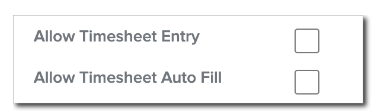
If you are setting up a new employee in Namely Payroll make sure the boxes for Allow Timesheet Entry and Allow Timesheet Auto Fill are not checked.
To remove the ability for all employees please submit a case via the Help Community using the taxonomy Time + Attendance > Timesheets > Timesheets Settings & Configuration > Users and request the feature to be disabled for all employees.