Assigning a Default Job Code on Employee Profiles in Namely Time
This article explains how to assign a default job code for an individual Employee Profile.
OVERVIEW
Employees must have default job codes assigned to set up a work schedule for an employee in Namely Time. Read on to learn how to assign a default job code to a profile, to ensure hours automatically apply to the employee's schedule.
TIP:
Need to assign default job codes for multiple employees? Refer to Namely Recommended: Assigning a Default Job Code on an Employee Role in Namely Time to save time and assign the default job codes on an employee role level!
PROCESS
In Namely Time:
1. Click Employee > Employee Profiles.
2. Enter the employee's name in the search bar under Employee Profiles.
3. Select the Jobs tab.
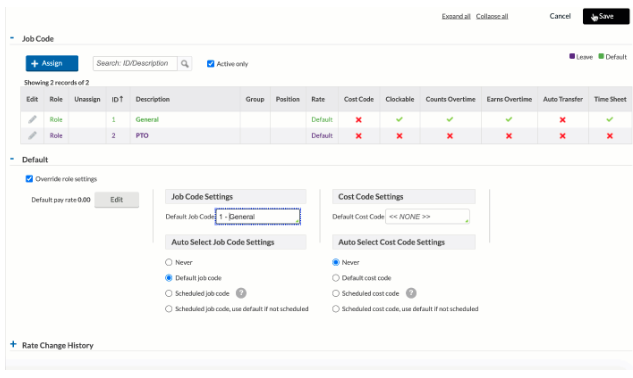
4. Under Job Code section:
o If the default job code is not listed, click the (Assign) icon if the default job code is not listed.
o If the default job code is already assigned, proceed to the next step.
5. Expand the Default section (located right under Job Code).
6. Select the checkbox for Override role settings.
7. Under the Job Code Settings column, select the job code that will be the default for the employee.
8. Click Save.