Company Bank Setup for Payroll Funding
This article will provide a guide for Namely Payroll Consultants to set up a client's banking setup when they are implemented with Namely.
Navigating the NatPay Portal
-
You will be given a NatPay login ID and a temporary password, which you will be prompted to change upon your first login.
-
Your NatPay login ID will be your Namely email address.
-
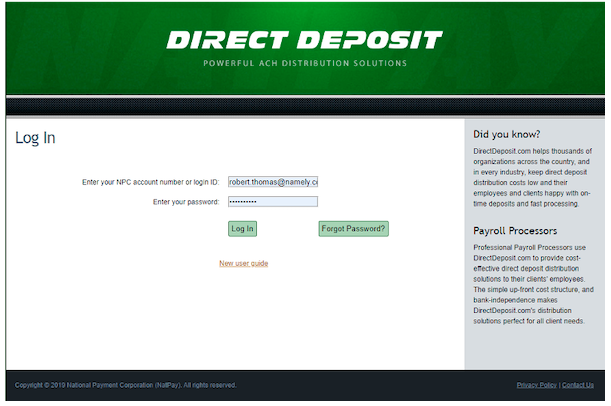
Login via https://my.directdeposit.com. (Please save to your favorites.)
-
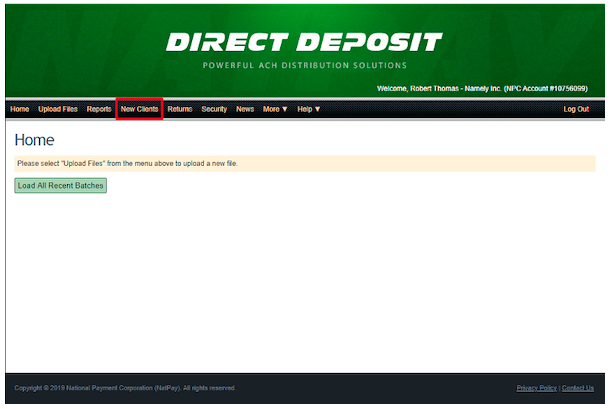
You will only have access to the New Clients tab in the NatPay portal.
-
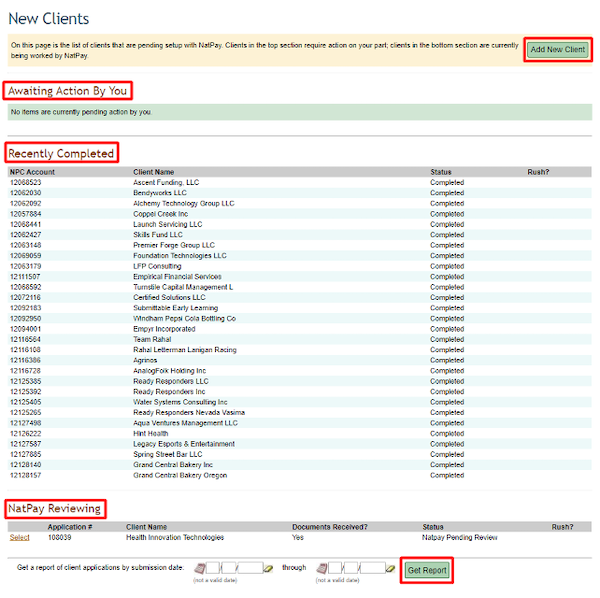
Within the New Clients portal, there are four distinct sections:
-
Add New Client
-
Awaiting Action By You
-
Recently Completed
-
NatPay Reviewing
-
-
You can also run an on-demand report for a given date range that will show all applications that have been submitted online and by whom.
Adding a New Client in NatPay
-
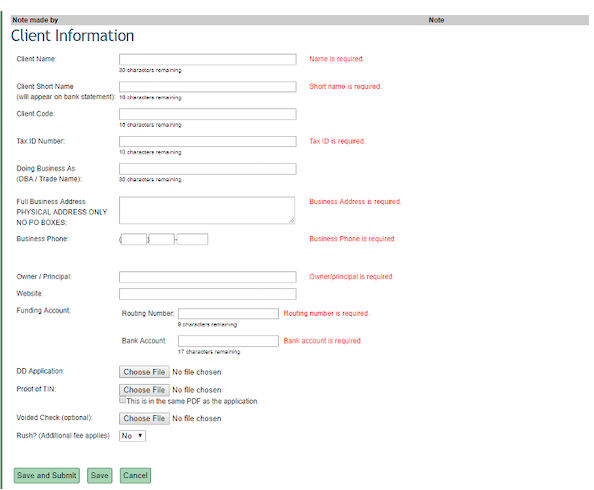
The Add New Client button will bring you to a separate screen where you will manually enter all required information and attach required documents.
-
You can only upload one file per upload link so you will need to combine all required documents into one PDF. If the proof of TIN is included in that one PDF, check the box that reads" “This is in the same PDF as the application”. See Internal Notes section below for more details on combining documents.
-
If the voided check is included in that one PDF, you do not have to upload it again in that section.
-
Only select Yes in the Rush section if it is truly a rush situation. NatPay will charge Namely, and we will then charge the client. (The fee is $50.00.)
-
You can save incomplete information and complete at a later time by clicking Save. The incomplete application will show in the Awaiting Action By You section in the New Clients portal homescreen.
-
Clicking Save and Submit will submit the application to NatPay. The client will then show in the NatPay Reviewing section in the New Clients portal homescreen.
-
Note: Client Code, DBA, Website are not required. Owner/Principal can be the contact you are working with.
Required Documents for NatPay
-
NatPay Application
-
NatPay and Namely Bank Authorization Form
-
NatPay Reverse Wire Drawdown Agreement (unless the client has been pre-approved by Namely Treasury for ACH)
-
Voided Check
-
A bank letter in lieu of voided check is acceptable. It should be on the bank's letterhead and include company name and routing and account numbers.
-
Bare minimum that will be accepted as a bank letter
-
The letter should include the business name, routing number, account number
Documents accepted in lieu of the IRS letter
-
Proof of EIN number - In order to meet our bank's compliance standards we need to receive one of the forms below with any new client contract sent over.
-
SS-4 Form
-
IRS Letter 147C: The IRS can be contacted at 1-800-829-4933 to request this form. It can be faxed to you with 1-2 business days
-
Signed 941 or 940 from. It must include both the first and the second page
-
Signed 8655 or 1120S form
-
IRS CP 575 form
-
If you enroll your clients in the EFTPS system then you can also pull up their company and send us a screen shot with their legal business
Note: please see Internal Notes section below for details on combining pieces of this documentation into a single PDF file.
Subsequent Steps in NatPay
Awaiting Action by You

-
Incomplete applications that are saved will show in the Awaiting Action By You section in the New Clients portal homepage.
NatPay Reviewing

-
Once the application has been submitted and all required information has been provided, the client will show in the NatPay Reviewing section in the New Client portal homepage.
-
If an application is submitted, but NatPay requires more information after the submission, the client will show in this section as well. NatPay will communicate via email (csr@natpay.com) to the submitter (and cc: PayOps) requesting more information, clarification, and/or missing documentation.
-
If you need to contact NatPay during this reviewing stage, you can email csr@natpay.com and reference the client name and application number.
-
If you need to make changes to the application information or provide updated documents, it should be emailed to NatPay via csr@natpay.com and reference the client name and application number. Do not start a new application within the portal.
Recently Completed Applications
-
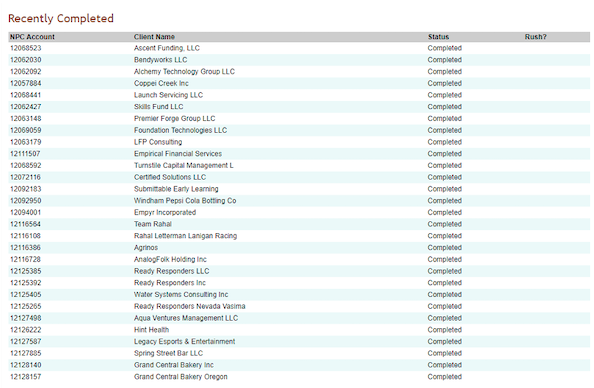
Completed applications will show in the Recently Completed section in the New Clients portal homepage.
-
At this point, the client will be assigned an NatPay ID which should be immediately copied and pasted in the client’s edit screen in Namely Payroll.
-
The New Account Confirmation doc will generate and be emailed to the submitter and PayOps. The penny test will also be initiated at this time.
-
Once the application has been completed online, all future communication regarding the client will be handled via email.
ACH Penny Test Confirmation
-
Once you receive the NatPay Confirmation email from NatPay, you will wait about 24-48 hours to have the client confirm the penny amount. (Namely does not know the amount tested.)
-
This amount will be between $0.01-0.99.
-
This will appear on their bank transaction as 2 deposits and 2 withdrawals all for the same amount.
-
-
After the client has confirmed the amount, you will relay that to NatPay using the Confirmation email thread.
-
If the amount matches their test records, then you will receive a separate email with the NatPay Activation doc.
-
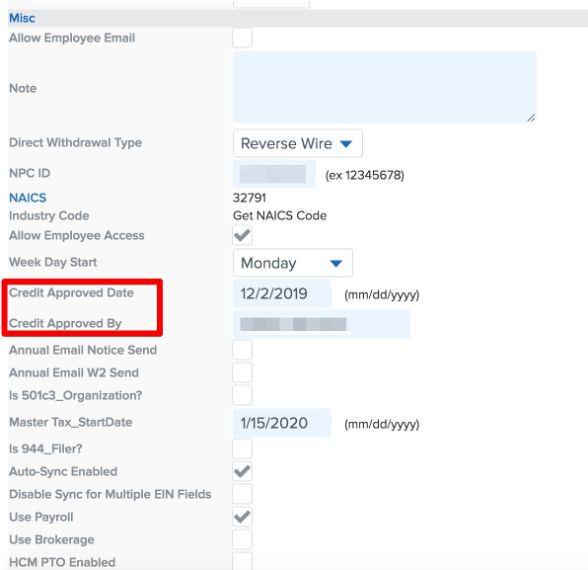
Once you receive the NatPay Activation email, you will update the company edit screen in Namely Payroll
-
You will need to populate the Credit Approved Date and the Credit Approved By fields.
-
For Professional Services:
-
Save the client's Account Confirmation & Account Activation documents (sent from NPC via email) to the client's Google Drive - NPC Folder.
Reverse Wire Setup
-
Clients should provide the NatPay Drawdown Agreement during their onboarding. This will help streamline the process so a separate case is not needed to PayOps to initiate the Reverse Wire test.
-
Once the application is complete, and the client is assigned a NatPay ID, the NatPay Reviewer will forward the drawdown agreement to NatPay’s Reverse Wire Department for setup within 24-48 hours. This is completely separate from the penny test.
-
After that allotted time, the RFW test will be initiated. Communication regarding the success or rejection of the test will be emailed directly to PayOps by NatPay.
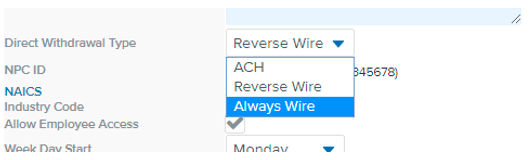
Note: New clients should default to Always Wire in Namely Payroll unless pre-approved by Namely Treasury for ACH.
Reverse Wire Test - Rejected
-
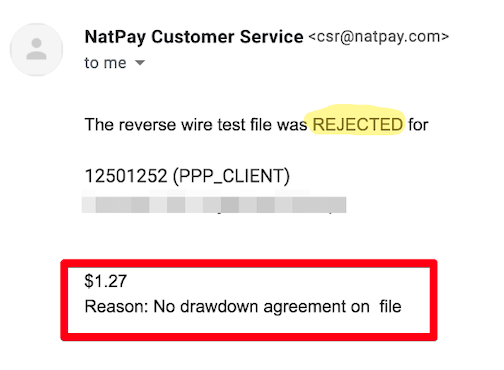
If the initial test is rejected, you will work with your client to confirm when their bank is ready for a re-test. From there you can communicate on the rejected email thread to instruct NatPay to initiate another RFW test
-
The rejection email from NatPay will include the following
-
Client NatPay Account#
-
Dollar amount of attempted Reverse Wire test
-
Rejection Reason
-
-
Common Rejection Reasons
-
No drawdown agreement on file. This means the client did not file the drawdown agreement with their bank prior to the test being initiated
-
The clients bank has not approved or rejected the test after a certain length of time
-
Reverse Wire Test - Successful
-
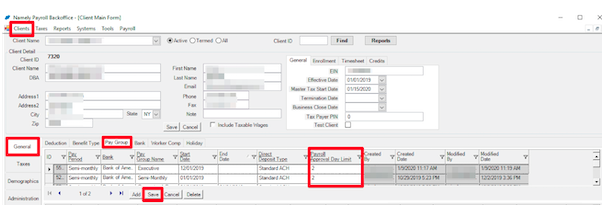
If the initial test is successful, NatPay will communicate to Implementation and PayOps via email. At that time, if the client has requested that their approval limit be updated from 3 to 2 days, Implementation will update the Payroll Approval Day limit to 2 days in BackOffice Legacy (BOL) as well as update the company edit screen in NP to “Reverse Wire”
-
Clients>General>Paygroup>Payroll Approval Day>Save
Submitting Draw Down after NatPay Application Submitted
-
You can reply to the Account Confirmation or Activation email from NPC with the completed Reverse Wire form and ask them to set up the client on Reverse Wire.
ACH Underwriting Process
-
If a client requests to be set up with ACH funding, then Treasury will need to approve this method of funding.
-
The client will need to complete the underwriting form so we can initiate this request.
-
The PC will create a case (and assign it to the Treasury queue) which must include the underwriting form, Namely Bank Authorization form, and voided check or bank letter.
-
Treasury will review the underwriting request, perform credit check via Dunn & Bradstreet, and respond back to the Payroll Consultant within 1-2 business days.
-
The response will state if the client is approved or denied within the Resolution Comment on the task.
-
If the client is Approved, The Payroll Consultant should change the case owner to the Payroll Ops queue which is how the payroll team will know to take action. Please update the description to include that finance approved ACH for this client.
-
-
PayOps will update the Direct Withdrawal Type in NP Edit screen to reflect ACH.
-
PayOps will also reach out to NatPay to notify them the client is set up with ACH funding.
-
If a client is Denied for ACH Debit, they will need to fund their payroll by either Always Wire or Reverse Wire.
-
-
Always Wire means the client has to send a direct one-time wire every time they run a pay cycle
FAQs
When the portal is asking for “owner/principal”, does it have to be the actual owner of the company, or can it be the contact we are working with?
It can be the contact you are working with.
Can multiple documents be attached for a given category?
Only one document can be attached- you will need to combine PDFs into one document. Please see Internal Notes below for more information.
If the voided check/bank letter is included in the NatPay form, does it need to be uploaded again in the voided check section?
No- it is optional if it is included in the NatPay form.
Does filling in the information online mean that NatPay no longer requires the application document?
No- the application, NatPay bank authorization doc, and drawdown agreement should be combined into one PDF and attached in the portal.
I got an email from NatPay with the account confirmation & wire transfer form; does that mean they’re going to initiate the penny test and RFW test?
-
Once you get the account confirmation email, the penny test will be initiated. The RFW test will go out 24-48 hours after it is received, as NatPay needs to submit that to their bank for processing.
-
If you do not hear back within 5 business days about a rejected or successful RFW test, reach out to NatPay to ensure it was also initiated.
When replying to NatPay’s email with missing attachments (IRS Letter & NatPay App), do we just need to send it secure or upload it back via the portal?
It is recommended that you send secure via email communication.
If the RFW test fails, does that mean the penny test fails as well?
No- they are two separate tests and not dependent on one another.
Upon completion and submission of the new client information in the portal, how should Implementation communicate with NatPay?
All communication after the information has been entered via the portal will be handled by email to csr@natpay.com.
Is there a standardized subject line we should try to use when contacting NatPay?
If NatPay emails you regarding an issue, you can reply back using the same email chain. If you have one-off issues/questions/concerns, the subject line should read “NatPay ID - Client Name” only. (Example: 11736448 - Chapter 4 Corp)