Adding and Importing Competencies
This article covers how to add Competencies in HRIS and submit a request for mass import.
CREATING COMPETENCIES
Competencies can be used in many ways. Typically, they are used to categorize certain characteristics or skills possessed by your employees. Competencies are created at the Company Level and can be assigned to applicable employees. To create a competency at the Company level, follow the steps below.
-
Go to Company > Settings > Competencies.
-
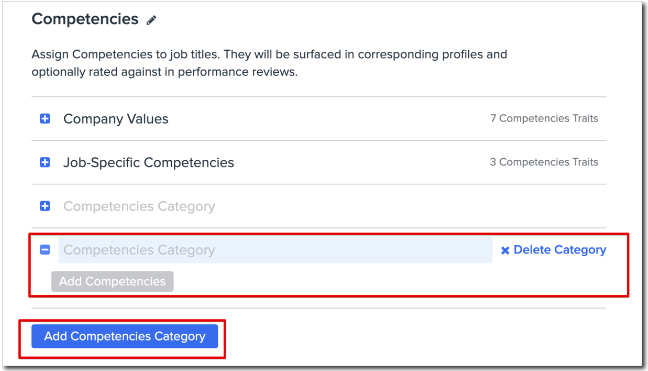
Select Add Competency Category and enter the category title.
-
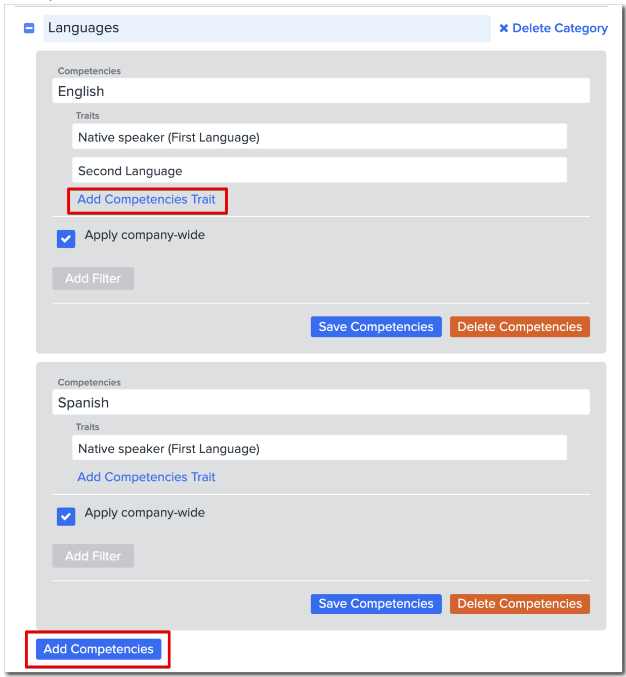
After you have entered a title, you can add competencies and their associated traits by selecting Add Competency or Add Competencies Trait.
-
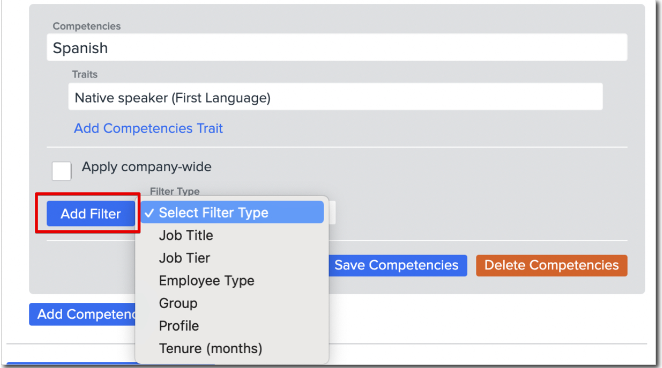
You can also decide whether you want the Competencies to be Company-wide or filtered by certain categorizations.
-
Once you have finished adding your Competencies, select Save Competencies.
ADDING MULTIPLE COMPETENCIES
Have multiple Competencies to add? We can import them for you!
First, create a CSV file with the below details then create a case via the Help Community and a consultant will be able to process the import for you.
-
Category: Category for the competency traits to be listed under (ex. languages).
-
Competency: Competency under the category (ex. English, Spanish, French).
-
Trait: List the traits that fall under Competency (ex. Native speaker, second language, etc. Add multiple lines to add additional traits).
-
Applicable Company-Wide: Yes or No
TIP:
Be sure to save a copy! It's always best practice to save a copy of your data before processing an import, in case there are any additional requests or questions.
Once the import file is complete, submit a case in the Help Community under HRIS Settings > Company Settings > Import Data and include the file as an attachment.