Can the Employee ID in Payroll sync to the Employee Number Field in HRIS?
The Payroll ID does not flow from Namely Payroll into the HRIS Employee ID field but you can utilize the General Import to import the ID numbers into employees' HRIS profiles.
TIP:
Refer to Namely Data Flow | HCM and Payroll for an overview of the fields that flow from HRIS to Namely Payroll!
To import the Payroll ID numbers to HRIS in bulk:
-
In Namely Payroll, click Reports > Retirement Plan Contributions (With Wage and General Employee Information) Report.
-
Use CTRL + F “Retirement Plan Contributions (With Wage and General Employee Information)” to locate the report.
-
-
Delete the columns A to D, F to J, and L to AN. The only remaining fields should be EmployeeID (column E) and Email (column K).
-
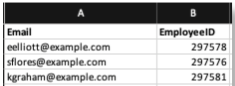
Re-organize the data.
-
The Email field will be your unique identifier and should be the first column.
-
The EmployeeID field should be the second column.
-
Example:
-
-
Save the document as a .csv file.
-
Refer to HRIS Imports: General Import for instructions on how to import and upload the Retirement Plan Contributions (With Wage and General Employee Information) file.
TIP:
Keep your employee numbers up to date in HRIS when onboarding new employees!