Namely Open Enrollment Form
Namely has moved away from requiring clients to fill out the BA sheet to submit Open Enrollment projects. We now ask that you fill out this Open Enrollment form. This article will explain all the sections of the Open Enrollment form and how to properly fill out each section. Please make sure to submit both the Open Enrollment form along with the Open Enrollment project within the Billing App, found in your HRIS site, to ensure that the Namely has all the required information to move forward with your Open Enrollment.
Company Name: Please enter your company’s name.
Main contact information: Please enter the main contact that the Namely team will be working with throughout the Open Enrollment project. If more contacts need to be added, please let the consultant know once they reach out.
EINs and Active Benefits Classes: List out all EINs that need to partake in this Open Enrollment, along with the benefit eligible classes per EIN. If the benefit eligible classes differ per EIN, please make note of that in the “Active Benefit Eligible Classes” field. To add an EIN, please click on the “Add EIN” button, and another row will be added to the section.
Domestic Partner and Children: Please select if Domestic Partner and/or Domestic Partner Children are eligible for benefits.
What Type of Domestic Partner: What type of Domestic partner is eligible for benefits? Select Opposite Sex only or Opposite Sex and Same Sex Partners.
When do benefits end for a child once they are over age: Select if benefits end on “Date of Birth” or “the Day before Birth Date.”
Terminating Plans - Plans that will not be offered in the upcoming plan year
-
Are there any active plans that will be terminated?
-
Please select Yes if you have any plans that will be terminating for your upcoming Open Enrollment.
-
Please select No if none of the plans that are active will need to be terminated.
-
-
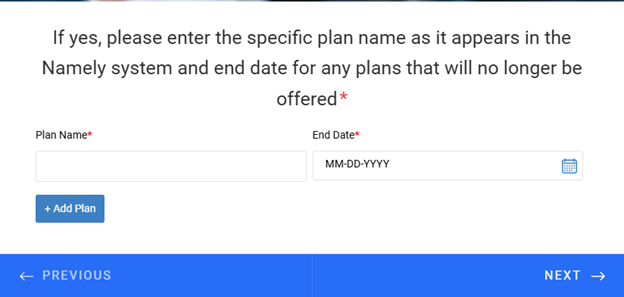
If you do have plans that are terminating, the above section will need to be completed. Please enter the name of the plan that needs to be terminated, and the end date that will need to be entered. It will be one row per plan.
-
If you have multiple plans that will be terminated during this Open Enrollment, please click on the “Add Plan” button to add more plans.
-
-
Will any Existing plans continue to be offered?
-
Please select Yes if you have any plans that will continue to be offered for your upcoming Open Enrollment.
-
Please select No if none of your active plans will be offered in this Open Enrollment.
-
-
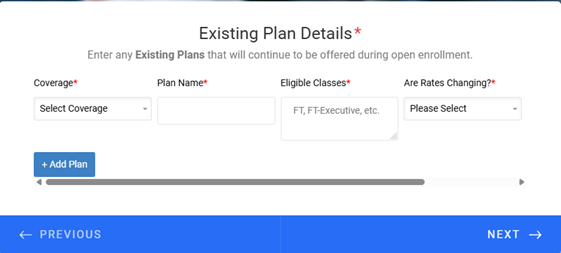
If you do have active plans that will continue to be offered, the above section will need to be completed.
-
Please scroll to the right to make all required fields visible. *
-
- Coverage – Select the coverage type from the drop-down menu. For example, if it is a medical plan that you are entering, select the medical coverage type.
-
Plan Name – Enter the name of the plan associated with the coverage type. Type the plan name as listed within the Manage Benefits section in your Namely HRIS site.
-
Eligible Classes – List all classes that are eligible for this plan. Use commas to separate each class.
-
Are rates changing – Select, yes or no, from the drop down if there are rate changes tied to the plan entered.
-
You can choose N/A if there aren't any rates tied to the plan. For example, a Flexible Spending Account.
-
-
Notes – If there are any special notes or eligibility tied to the plan listed, please enter them in the Notes section.
-
If you have multiple plans that will be continued during this Open Enrollment, please click on the “Add Plan” button to add more plans.
-
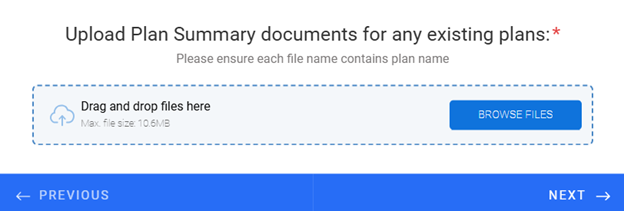
Upload any Summary of Benefits, Benefit Guides, or spreadsheets that include plan names.This will better assist our team with identifying which document is associated with a specific plan.
-
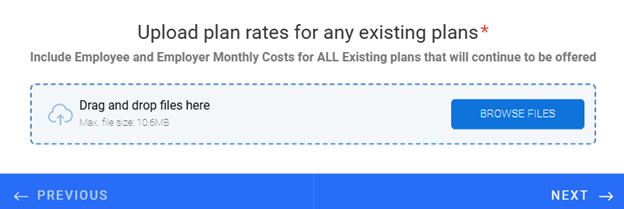
Upload any Summary of Benefits, Benefit Guides, or spreadsheets that include plan name and rates. It will be very important to include rates with the documents that are being uploaded so that the Namely team can stay on track with your intended Open Enrollment start date. Any delays in providing plan information with rates, may cause a push to your Open Enrollment start date.
-
Will any New plans continue to be offered?
-
Please select Yes if you have any new plans that be offered for your upcoming Open Enrollment.
-
Please select No if you do not have any new being offered for this Open Enrollment.
-
-
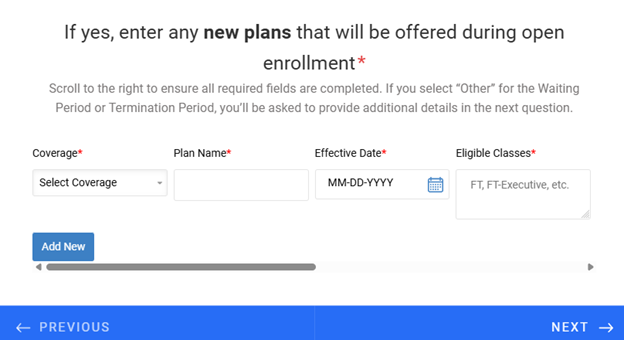
If you do have new plans that will be offered, the above section will need to be completed.
-
Please scroll to the right to make all required fields visible.*
-
-
Coverage – Select the coverage type from the drop-down menu. For example, if it is a medical plan that you are entering, select the medical coverage type.
-
Plan Name – Enter the name of the new plan associated with the coverage type.
-
Effective Date – Please enter the start date of the newly offered plan.
-
Eligible Classes – List all classes that are eligible for this plan. Use commas to separate each class.
-
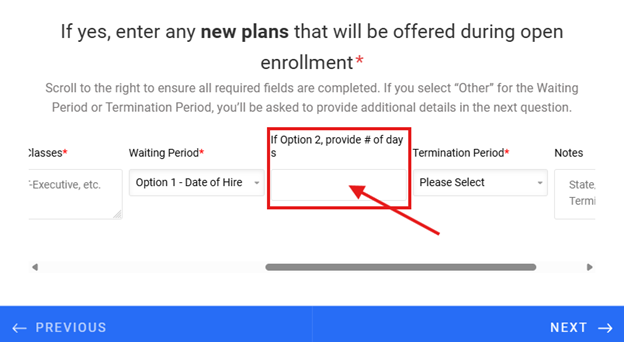
Waiting Period – a set timeframe after a newly benefits eligible employee is enrolling in a plan where the benefit goes into effect. Choose from the drop down the waiting period that applies to the plan.
-
Option 1: Date of Hire
-
Option 2: First of the month following number of days
-
To provide the numbers of days, enter this in the “Provide # of days” field shown below.
-
For example: First of the month following 30 days
-
-
Option 3: Other - if the waiting periods above do not apply to the plan, please select “Other”. You will be asked to fill out more information in an additional section in the form.
-
-
Termination Period – When an employee is terminated from the company, this is the timeframe when the benefits will end. Choose from the drop down the termination period that applies to the plan.
-
Option 1: End of Month
-
Option 2: Date of Termination
-
Option 3: Other – if the termination periods above do not apply to the plan, please select Other. You will be asked to fill out more information in an additional section in the form.
-
-
Notes – If there are any special notes or eligibility tied to the plan listed, please enter them in the Notes section.
-
If you have multiple plans that will be continued during this Open Enrollment, please click on the “ Add Plan ” button to add more plans.
-
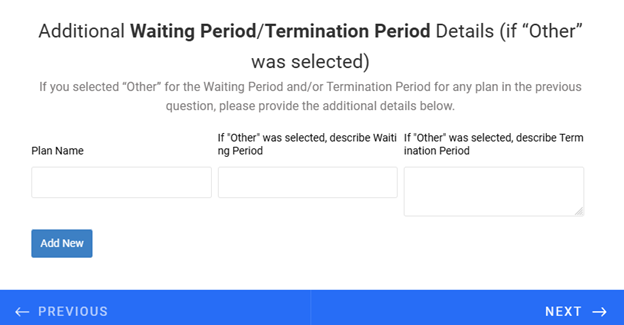
If you selected Other for waiting periods and/or termination periods for any of the plans in the previous section, please provide additional information about your waiting and terminations periods in the section above.
-
Plan Name – Enter the name of the new plan.
-
If "Other" was selected, describe the Waiting Period – please enter the waiting period for the plan listed.
-
If "Other" was selected, describe the Termination Period – please enter the termination period for the plan listed.
-
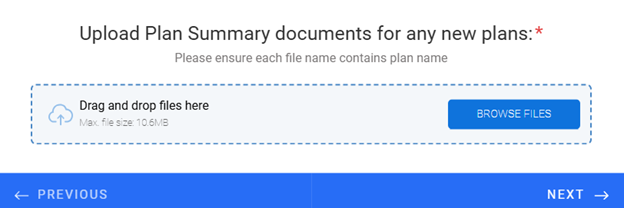
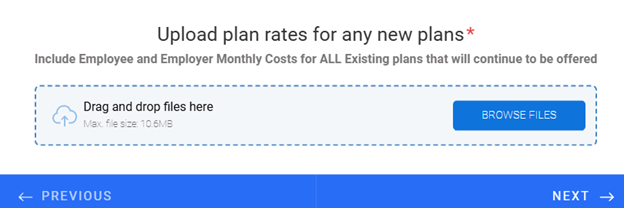
Upload any Summary of Benefits, Benefit Guides, or spreadsheets that include new plan names.This will better assist our team with identifying which document is associated with a specific plan.
-
Upload any Summary of Benefits, Benefit Guides, or spreadsheets that include new plan names and rates. It will be very important to include rates with the documents that are being uploaded so that the Namely team can stay on track with your intended Open Enrollment start date. Any delays in providing plan information with rates, may cause a push to your Open Enrollment start date.