Employee Self Service - Settings Tab
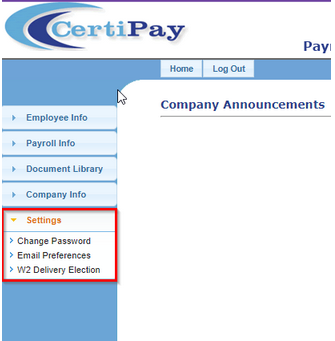
From the Settings tab of the Employee Self Service application, the employee can change their password or update their email preferences.
Change Employee Self Service password
Click the Change Password link to allow employees to change the password used to log into the CertiPay Employee Self Service.
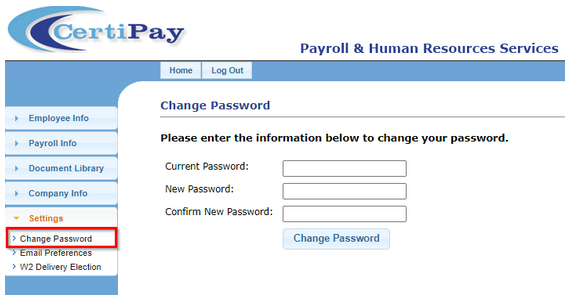
To change the password, populate the following fields and click Change Password.
|
Current Password |
Enter the current password used to log into the CertiPay Employee Self Service application. |
|
New Password |
Create the new password for your username. The name must be between 6 and 20 alphanumeric characters long and cannot include spaces. |
|
Confirm New Password |
Re-enter the new password. |
Update email preferences
The email preferences section displays the employee's email information.
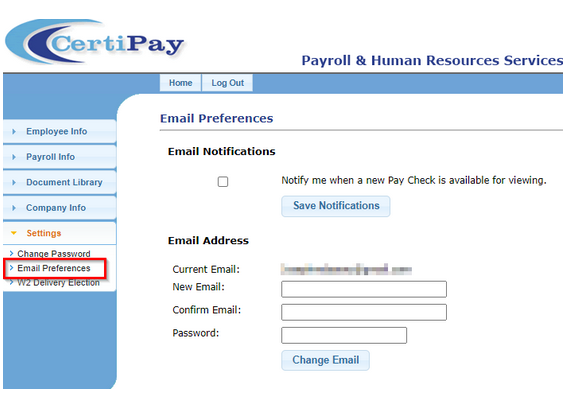
To receive an email when a new pay stub is available to be viewed, click the Notify me when a new Pay Check is available for viewing check box, and click Save Notifications.
To change the email address for the employee, update the following fields and click Change Email.
Change W2 Delivery Election
This section allows the employee to specify whether they want electronic or paper delivery of the W2 form.
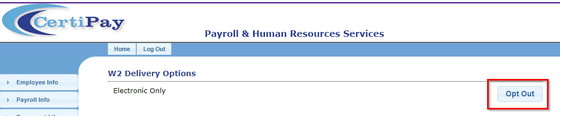
The below is an example of how it looks when an employee is enrolled in electronic only delivery:
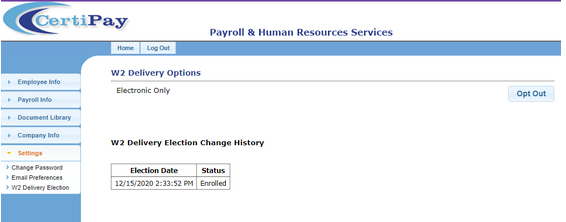
To opt-in to electronic delivery of W2 forms, click Enroll.
To opt-out of electronic delivery of W2 forms, click Opt Out.