Loading History
Loading History for CertiPay Online
-
Obtain the payroll history by either logging into their previous payroll provider’s site or the client will send the payroll history to our support email.
-
Add the employees / wait until the client adds their employees.
-
To start an Adjustment Run:
-
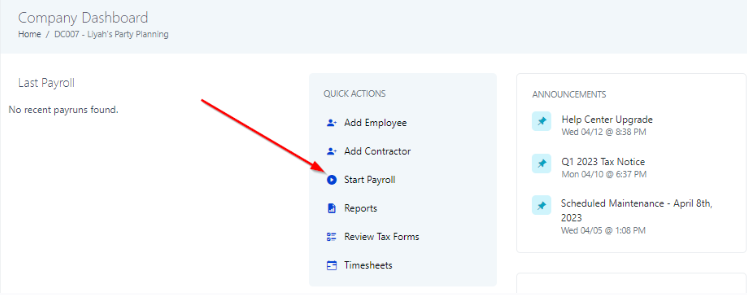
If the client does not have a pay schedule created, go to Payroll in the quick actions section on the company dashboard and “/start” at the end of the URL.
-
-
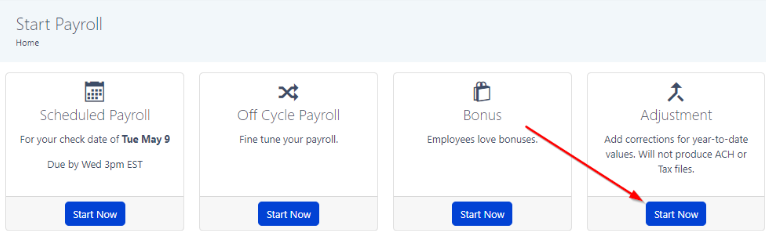
Click on “Start Now” under Adjustment
-
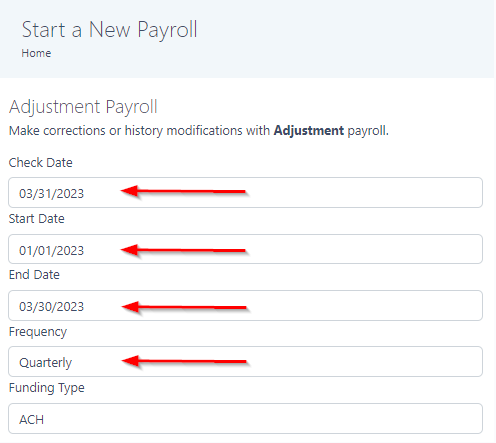
Enter Check Date, Start Date, End Date, Frequency and Continue based off of the payroll history.
-
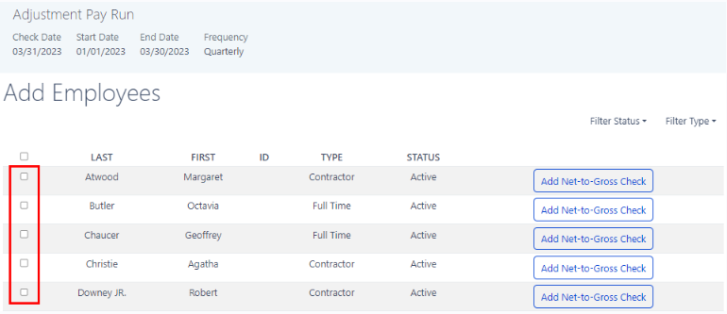
Select the employee’s that will be on the run and Add Employees
-
Click on the blue Utilize v2 Paystub Management button

-
A new tab will open for the employee on the earnings tab. Click the orange Add button.
-
Select the company earning from the dropdown – Hourly, Salary, Flat
-
Enter earning type, description (as shown on payroll history) and the GROSS amount.
-
If the payroll history has an earning that has not been created, you will need to add it on the company profile. Adding, Editing, and Removing Company Earnings
-
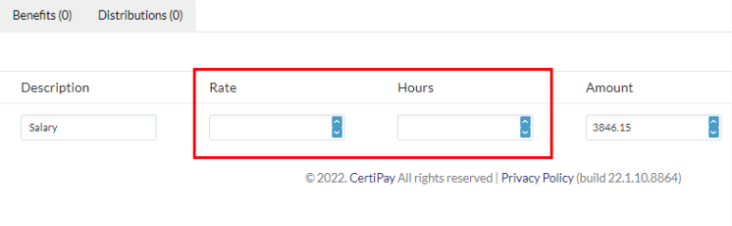
Enter in the hours and rate for the employee earning. Note, hours will need to be entered for Salary employees.
-
Hourly Vs Salary Earnings
-
For Hourly/Regular earnings, use the rate and hours provided in the payroll history, however, make note of the rounding issue listed below
-
For Salaried earnings, divide gross wages by the default full-time hours according to pay frequency (i.e. Bi-Weekly = 80 hours, Semimonthly = 86.67, etc.), make note of the rounding issue listed below
-
-
Enter Deductions based on the payroll history on the deductions tab.
-
The proper deduction model will need to be determined to ensure the taxable wage base is correct and taxes are calculated properly
-
Use this article to help understand Pre/Post tax calculations: How to Determine if a Deduction is Pre/Post Tax
-
-
Withholdings
-
Click “Fill from Preview” ONCE (no double clicking)
-
Confirm FICA pulls in as expected
-
FIT / SIT may need to be adjusted to match the payroll history reports
-
SUI should line up with payroll history, however, SUI minors may need to be taken into consideration for some states (such as GA)
-
Make note of the rounding issue below
-
-
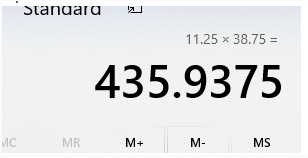
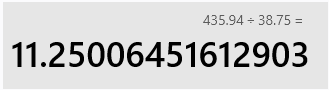
ROUNDING ISSUE – The “Withholdings” calculation rounds taxable wages differently than gross wages are rounded on the “Submit Payroll” screen. For instance, the below may round to 435.94 when filling in Withholdings, but may round as 435.93 when viewing the “Submit Payroll” screen:
-
Prior Provider Report:
-
Submit Payroll rounds to 435.93
-
Withholdings would round up to 435.94
-
To ensure that the report totals (gross, net, tax liabilities) align with payroll history, adjustments will need to be made to the rate on the earning:
-
-
Once all Employees’ earnings, deductions, and withholdings have been added, go to Save and Preview
-
Use the Payroll Register to confirm employee and company level totals.
-
Taxable wages cannot be compared to prior provider tax returns / prior provider Wage & Tax Registers until the run has been submitted and a CPO Wage & Tax Register can be pulled.
-
-
Once data is confirmed, Submit payroll.
-
For completed quarters, compare CPO Wage & Tax Register to company returns.
-
If the amounts do not line up, the run will need to be cancelled and duplicated. Some deductions are pulled back in during the duplication process, however, not all are. You will need to review these for each employee.
-
Make any necessary corrections in earnings and/or deductions
-
Add withholdings
-
Review payroll
-
Rinse and Repeat
-
Complete tax recon sheet
-
Complete each applicable Quarter:
-
Fed Wages (941 – Line 2 Box 2)
-
Fed Tax (941 - Line 3 Box 3)
-
Taxable FICA Wages (941 – Line 5a Column 1)
-
EE FICA Tax (941 – Line 5a Column 2 – Divide by 2)
-
ER FICA Tax (941 – Line 5a Column 2 – Divide by 2)
-
Taxable Medi Wages (941 – Line 5c Column 1)
-
EE MEDI Tax (941- Line 5c Column 1 – Divide by 2)
-
ER MEDI Tax (941- Line 5c Column 1 – Divide by 2)
-
FUTA Wages
-
FUTA Tax Liability
-
FUTA Tax Deposited (Taxes must know if FUTA was deposited)
-
SIT Taxable Wages (State Withholding Qtrly Returns) – Change state abbreviation or delete for the state that does not have State WH.
-
SIT Tax (State Withholding Qtrly Returns)
-
SUI Wages (State Unemployment Qrly Returns)
-
SUI Taxable Wages
-
SUI Tax
-
SUI Rate
-
-
Complete the Current Quarter if applicable:
-
FIT
-
FICA EE
-
FICA ER
-
MEDI EE
-
MEDI ER
-
-
Once the Tax Recon Sheet matches, attached the below to Prior Qtr Data email to Taxes
-
RTS file for completed quarters
-
Federal & State Returns
-
Recon spreadsheet
-
-
Save Recon to client's history folder (Control #-Recon Sheet)
-
Save Prior Qtr Data email to client folder too.